
If your dashboards never quite match what you know is happening on your site, the problem probably isn’t your reporting. It’s further upstream than that. Missing conversions, duplicated events, parameters that don’t line up all of it usually traces back to one thing: tracking that got built before anyone actually planned it out.
This guide walks through how to set up clean data collection and build custom event tracking you can actually trust, from the data layer up through ongoing governance.
Why Data Setup Matters Before You Track Anything
Here’s the thing most teams get wrong: tracking problems are rarely technical. They’re planning problems wearing a technical costume. Someone opens Google Tag Manager (GTM) and starts firing tags before anyone’s decided what “success” is even supposed to look like.
A lot of marketing data more than most teams realize is quietly broken in some way. Incomplete events, tags that misfire, duplicate hits. And once that bad data works its way into your reporting, it’s genuinely painful to unwind. Every dashboard, every attribution model, every ROI number built on top of it inherits the same error. Fixing tracking after the fact almost always costs more time than doing it right the first time would have.
A structured data layer, paired with a taxonomy everyone actually agrees on, fixes this at the source. It gives GA4, your ad platforms, your CRM, and whatever BI tool you’re using the same shared vocabulary for what happened on your site.
H1: Plan Before You Touch GTM
Before you open Tag Manager, sit down and answer three questions:
- What decisions will this data actually inform? Which channels are bringing in qualified leads, for instance.
- What counts as value? Signups, purchases, completed videos, submitted forms be specific.
- Who’s going to use this data? Marketing, product, sales, finance they often need different parameters off the exact same event, and it’s worth knowing that up front rather than discovering it later.
Write this down somewhere. A measurement plan doesn’t need to be fancy a spreadsheet mapping business goals to events, parameters, and destinations is plenty.
Measurement Plan Template
| Business Goal | Event Name | Trigger | Parameters | Destination | Owner |
|---|---|---|---|---|---|
| Generate leads | generate_lead | Form submit success | form_id, form_location, lead_type | GA4, CRM | Marketing |
| Track purchases | purchase | Order confirmation page | transaction_id, value, currency, items | GA4, Ads | Ecommerce |
| Measure engagement | video_progress | 25/50/75/100% watched | video_title, percent_watched | GA4 | Content |
H2: Design a Data Layer Schema
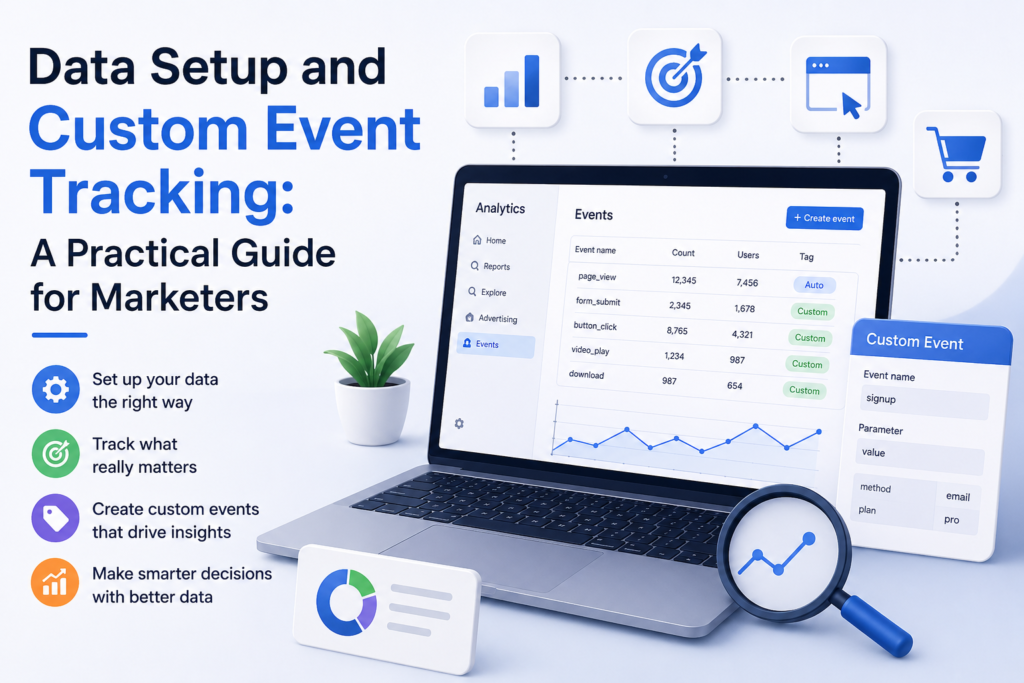
The data layer is just a JavaScript object sitting between your site and your tags it passes structured info to GTM so you’re not hardcoding values into every individual tag. Get the schema right early, and debugging six months from now is a lot less painful.
Basic Data Layer Push Example
javascript
window.dataLayer = window.dataLayer || [];
dataLayer.push({
event: ‘generate_lead’,
form_id: ‘contact-form-01’,
form_location: ‘footer’,
lead_type: ‘demo_request’
});
A few things worth locking in early:
- Pick a casing convention and stick to it. Snake_case or camelCase, doesn’t matter which just don’t mix them halfway through.
- Reuse parameter names. If value and currency mean one thing on your purchase event, they should mean the same thing everywhere else revenue shows up. Don’t let one event call it price and another call it amount.
- Push before the trigger fires. This trips people up constantly if the data layer event lands after GTM’s trigger is already listening, the tag fires with half-empty data.
- Clear the data layer on route changes if you’re on a single-page app, or old parameters will bleed into the next page view.
H3: Build an Event Taxonomy
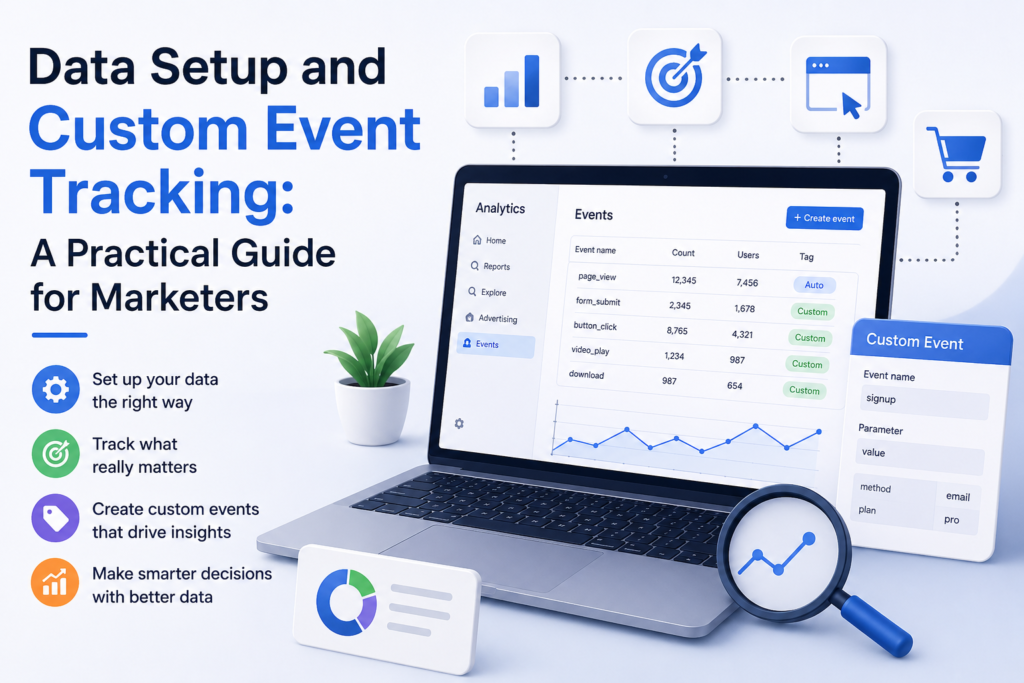
GA4’s standard events page_view, session_start, first_visit mostly collect themselves. Custom events are the ones you define yourself, for the actions that are actually specific to your business: pricing_tab_click, demo_scheduled, that kind of thing.
Standard vs. custom, quickly: standard events use Google’s predefined names and parameters, so platforms like Google Ads know how to interpret them automatically. Custom events give you flexibility, but you’re on the hook for mapping them into reports and conversions yourself nobody does that for you.
Naming Conventions Worth Following
- Stick to verb_noun: submit_form, click_cta, start_trial
- Keep it under 40 characters GA4 will cut you off
- Skip reserved prefixes like google_, ga_, or firebase_, and avoid spaces or special characters
- Write the taxonomy down somewhere shared. Otherwise two teams will invent two different names for the same action, and you won’t find out until reporting looks wrong
Simple Event Taxonomy Template
| Event Name | Category | Description | Required Parameters |
|---|---|---|---|
| click_cta | Engagement | Any primary CTA click | cta_text, cta_location |
| start_trial | Conversion | Free trial signup started | plan_type |
| download_asset | Engagement | Gated content download | asset_name, asset_type |
| search_site | Engagement | Internal search used | search_term |
H4: Configure the Tags
With the data layer and taxonomy sorted, the GTM side is mostly wiring.
Trigger: Custom Event → Event name: generate_lead
Tag: GA4 Event tag
javascript
// GA4 Event Tag configuration in GTM
Event Name: generate_lead
Event Parameters:
form_id: {{DLV – form_id}}
form_location: {{DLV – form_location}}
lead_type: {{DLV – lead_type}}
Each {{DLV – …}} is a Data Layer Variable pulling the matching key straight from your dataLayer push.
If you’re running things server-side, you can forward the same event through the Measurement Protocol instead:
javascript
fetch(‘https://www.google-analytics.com/mp/collect?measurement_id=G-XXXXXXX&api_secret=YOUR_SECRET’, {
method: ‘POST’,
body: JSON.stringify({
client_id: ‘CLIENT_ID’,
events: [{
name: ‘generate_lead’,
params: { form_id: ‘contact-form-01’, lead_type: ‘demo_request’ }
}]
})
});
Client-Side vs. Server-Side, Side by Side
| Factor | Client-Side | Server-Side |
|---|---|---|
| Setup complexity | Lower | Higher needs a server container |
| Ad blocker resilience | Weaker | Much stronger |
| Data control & privacy | Limited | Better you can filter before data leaves your server |
| Page performance | More scripts loading | Fewer client-side requests |
Most teams that have their act together end up doing both: client-side for general behavioral stuff, server-side for anything sensitive or high-volume.
H5: Don’t Skip Consent
Tracking has to respect whatever the user actually agreed to. In GTM, that means using Consent Mode so tags either hold off entirely or fire in a scaled-back, privacy-safe way depending on consent status.
- Put analytics and ad tags behind a Consent Initialization trigger
- Push consent status into the data layer too, so you can actually audit it later
- Write down your legal basis and retention rules alongside the measurement plan this isn’t just something to leave for legal to sort out
H6: Actually Debug Your Events
Don’t assume a tag is working just because you configured it correctly. Check.
- GTM Preview Mode shows you which triggers fired and which tags they set off
- GA4 DebugView shows events landing in real time, parameters and all
- The browser console typing dataLayer will show you the live object, which catches a surprising number of problems
Quick Audit Checklist
- [ ] Event fires once per action, not two or three times
- [ ] Every required parameter is present and the right type
- [ ] Event name matches the taxonomy doc exactly, not close-enough
- [ ] Shows up correctly in GA4 DebugView
- [ ] Conversion events are actually marked as conversions in GA4 admin
- [ ] Tags respect consent state before firing
- [ ] No PII emails, names, raw user IDs is riding along as a parameter
- [ ] Fires consistently across browsers and on mobile, not just desktop Chrome
H7: Map Events to Conversions
Not everything deserves to be a conversion. Reserve that label for events that represent real business value purchases, qualified leads, signups. If you mark scroll depth or menu clicks as conversions too, you’ll dilute your attribution models and confuse Google Ads bidding in the process.
It helps to keep a clear line between:
- Micro-conversions email signups, video views useful for understanding the funnel
- Macro-conversions purchases, booked demos the ones actually tied to ROI
H8: Treat Governance as Ongoing, Not a One-Time Thing
Sites change. Campaigns launch. Someone redesigns a form and doesn’t tell anyone. Any of these can quietly break tracking without setting off alarms.
- Audit every quarter. Run the checklist against live traffic, not just what you set up months ago.
- Version your schema. Document changes so old data still makes sense later.
- Give someone ownership. New events shouldn’t go live without someone signing off first.
- Watch for anomalies. A sudden spike or drop in event volume is far more likely to be broken tracking than a real shift in behavior.
Common Troubleshooting Scenarios
| Symptom | Likely Cause |
|---|---|
| Event missing entirely | Data layer push fired after the GTM trigger, or the trigger name doesn’t match |
| Event fires twice | Tag fired on both page load and a route change, or you’ve got duplicate GTM containers |
| Parameters show (not set) | Data Layer Variable name doesn’t exactly match the dataLayer key |
| Conversions not showing in Ads | Event isn’t marked as a GA4 conversion, or GA4 and Ads aren’t linked properly |
Final Thoughts
Good measurement isn’t about piling on more tags. It’s about building a data layer and an event taxonomy that hold up as your site and your team grow around them. Plan the schema first, name things deliberately, actually verify events before you trust them, and treat governance as something you keep doing, not something you finish once. Get that foundation in place, and everything downstream the reports, the attribution models, the ROI numbers you take into planning meetings actually holds up.